Windows Screenshot Tool

Blur everything.Reveal only what matters.

Share screenshots fast — without leaking sensitive data.

BlurSnap automatically blurs your screenshot the moment you take it, so sensitive information — passwords, emails, account numbers — is hidden by default. Simply paint over the parts you want to reveal; everything else stays redacted. Works on anything on your screen — code, dashboards, chats. Fast, private, and no external editor required.

Download Free Trial Windows 10 / 11  ·  2.6 MB
Buy — $9.99
Everything you need, nothing you don't
Paint to reveal
Brush over the parts you want visible. Everything else stays blurred automatically.
Hold to peek
Not sure what to reveal? Hold a key to see the original underneath, so you know exactly what to paint. Release, and it blurs back.
Global hotkey
One shortcut captures the screen and opens the editor instantly. No clicks needed.
Auto copy & save
The result is copied to clipboard and saved automatically when you're done.
Privacy by default
Everything runs locally. No cloud, no uploads, no AI processing. Your screenshots never leave your machine.
Customizable workflow
Set your hotkey, save folder, brush size, and blur intensity. Works exactly the way you want.
Three steps, five seconds

Press the hotkey, then select an area

Hit Ctrl+Shift+B (or your custom shortcut) from anywhere, then drag to select the part of your screen you want to share. It opens in the editor with everything blurred, so sensitive data is hidden before you show a single pixel.
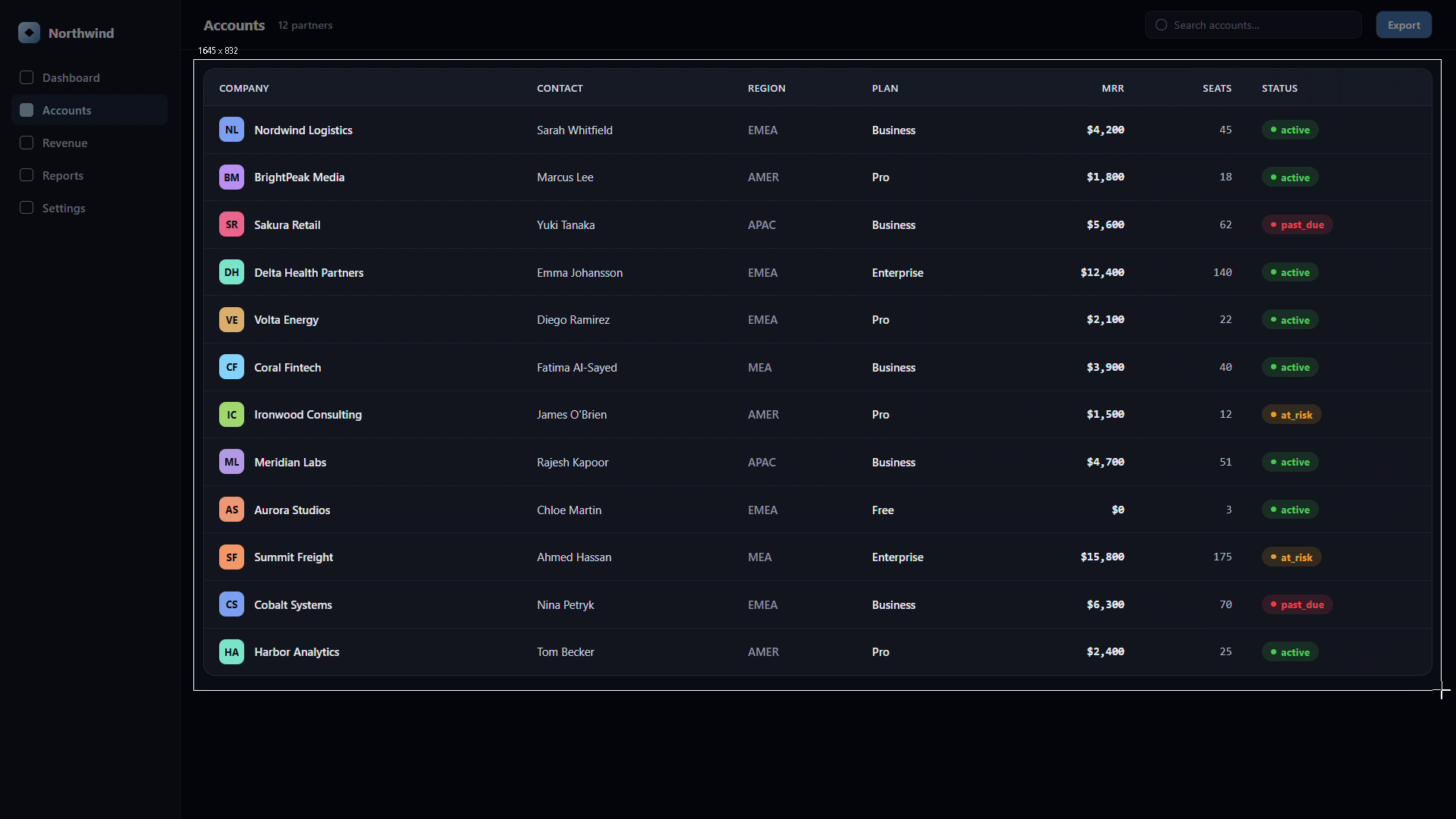
Selecting a screen region to capture in BlurSnap

Paint to reveal the parts you need

Hold the left mouse button and brush over what you want to show. Adjust brush size and shape. Use Ctrl+Z to undo any brushstroke.
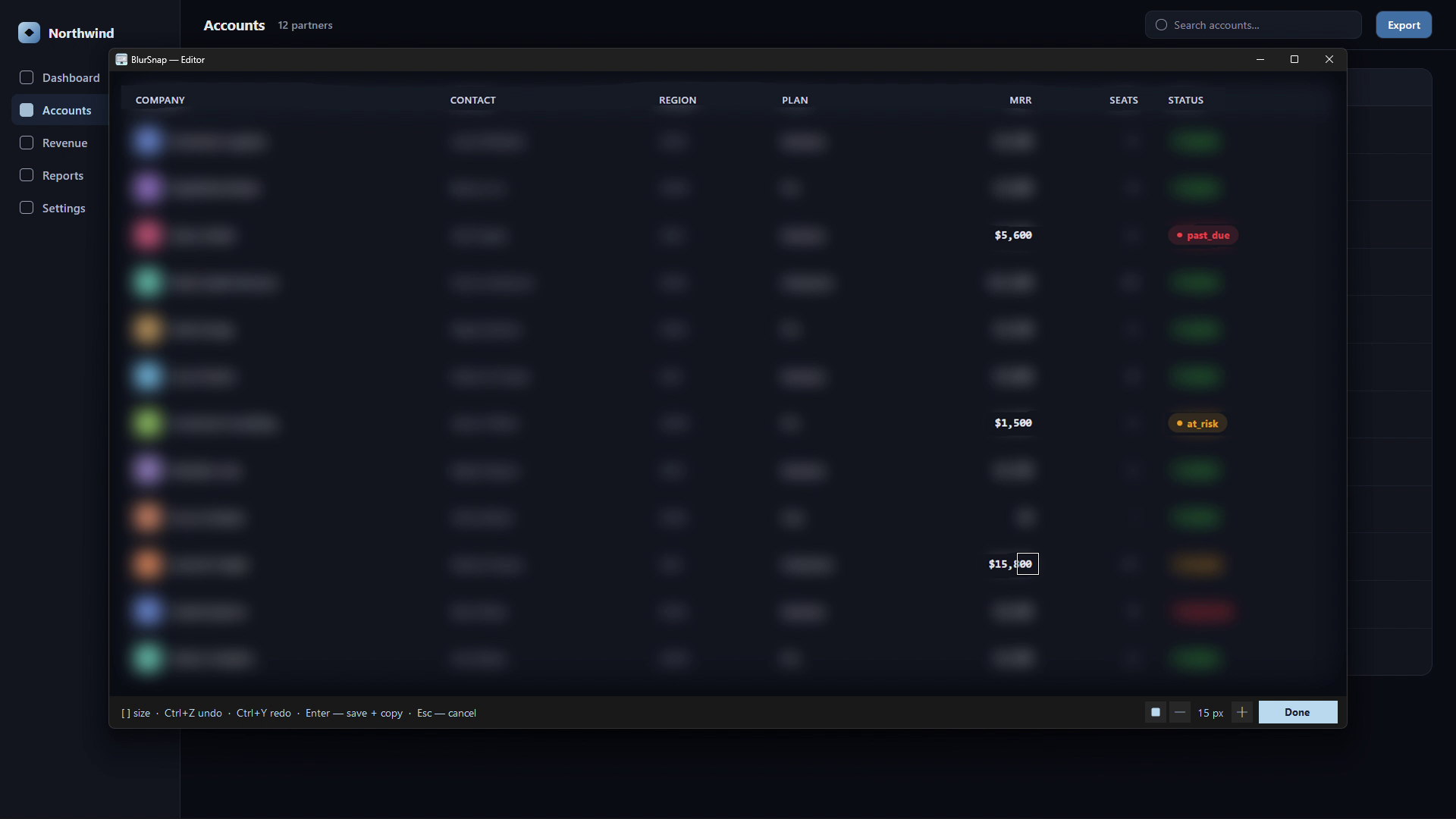
Painting with the brush to reveal specific cells while everything else stays blurred

Press Enter — done

The result is saved to a folder and copied to your clipboard automatically. Paste it anywhere, instantly.
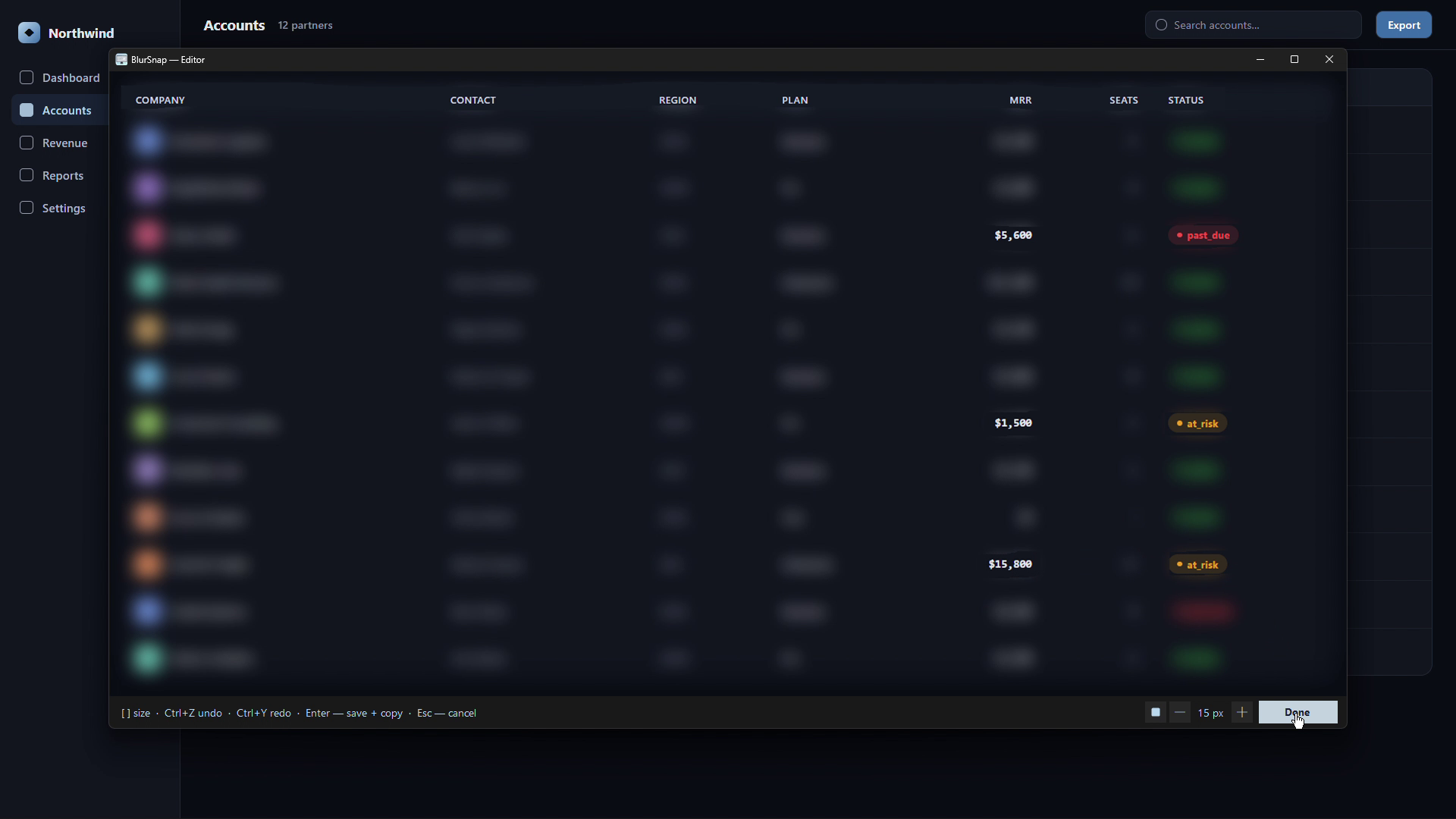
The finished screenshot saved and copied to clipboard, with only the important cells revealed
Simple, one-time pricing
Free
Trial
$0
  • Paint-to-reveal editor
  • Hold-to-peek — see the original
  • No cloud — files stay on your PC
  • Works fully offline
  • Global hotkey (customizable)
  • Auto-copy & auto-save
  • Adjustable brush size & shape
  • Adjustable blur intensity
  • Undo / Redo
  • 14 days · 30 screenshots
  • Saved images are watermarked
Download Trial
Common questions
How do I hide sensitive information before sharing a screenshot?
Take the screenshot with BlurSnap and the whole image is blurred instantly — passwords, emails, account numbers and any personal data are hidden by default. Then paint over only the parts you actually want to show and save. Nothing sensitive is revealed unless you choose to reveal it.
Can I blur or redact just part of a screenshot?
Yes — that's exactly what BlurSnap is built for. Instead of hunting down every detail to blur (and risking you miss one), it blurs everything and lets you reveal only what you need with a brush. The sensitive areas stay redacted by default.
Is there a subscription?
No. BlurSnap is a one-time purchase. You get lifetime access and all future updates for free.
Which Windows versions are supported?
Windows 10 and Windows 11 (64-bit).
Does it need an internet connection?
Only to activate your license key and for occasional license validation. Your screenshots are never uploaded anywhere.
Can I use it on a new computer?
Yes. Open Settings, click "Deactivate", then install BlurSnap on your new machine and enter the same key. One active device at a time.
What if I lose my license key?
Your key is sent to your email right after purchase. Check your inbox or spam folder. Still can't find it? Contact us at support@blursnap.app.
Why does Windows show a security warning?
As a new indie app, BlurSnap doesn't yet have a Microsoft code-signing certificate. Click "More info" → "Run anyway" to proceed. No telemetry, no ads, no surprises. You can also view the VirusTotal report or scan it yourself for peace of mind.